The Action Dock is the right-edge overlay that owns all gameplay and editing controls during a play session. It adapts to show exactly the actions available for your current selection and mode.
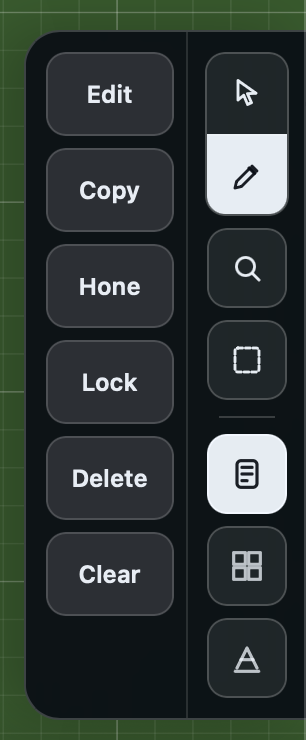
The dock has two main parts side by side:
- Action Column (left) -- the vertical stack of action buttons for whatever you have selected.
- Action Rail (right) -- the narrow strip of mode switches, lenses, and target toggles on the outer edge.
The Action Rail
The Action Rail is the rightmost strip of the dock. It is always visible and contains three groups of controls stacked vertically: Modes, Lenses, and Target Toggles.
Modes
Exactly one mode is active at a time. The three mode buttons sit inside a segmented control at the top of the rail.
Interact (pointer icon) is the default mode. It exposes gameplay actions: flipping tiles, rolling dice, drawing from stacks, shuffling, dealing, and so on. In Interact mode, only pieces produce actions; spaces and annotations have no Interact actions.
Edit (pencil icon) switches to table-building actions: adding new entities, editing properties, copying, deleting, locking, and arranging. Edit mode also reveals the Target Toggles described below.
Measure (ruler icon) activates the measurement tool. Click and drag anywhere on the table to draw a measurement line between two points. The distance is displayed in the table's preferred unit (mm, cm, or in) on an amber label at the midpoint of the line. The measurement stays visible until you draw a new one or switch modes. In Measure mode, the Action Column is hidden and the cursor changes to a crosshair.
Lenses
Below the mode buttons are two independent lens buttons. Lenses layer on top of the active mode without replacing it.
Inspect (magnifying glass icon) is a toggle. When active, it opens the Inspector panel, which shows detailed properties for the currently selected entity. Clicking Inspect again closes the panel.
Select (dashed rectangle icon) is a one-shot armer. Clicking it arms marquee selection mode: the button pulses to indicate that the next drag on the table will draw a selection rectangle instead of panning. After you complete a marquee drag, the lens automatically disarms. You can also click the pulsing button again to cancel without selecting.
Target Toggles
Target toggles appear in Edit mode, below a thin separator line. They choose what your clicks and drags can grab on the table. They do not change what is drawn on top of what.
Target Pieces (stacked cards icon) lets you select and move pieces: tiles, stacks, dice, tokens, containers, and counters. On by default.
Target Spaces (grid icon) lets you select and move spaces: placement areas, hex grids, and square grids. Off by default.
Target Annotations (text icon) lets you select and move annotations: text labels, arrows, and shapes. Off by default.
A toggle that is on is highlighted (filled). Turning one off also deselects anything of that kind you had selected. The settings stay as you left them when you switch back to Interact mode.
Two toggles also change what you see, to help you work on one kind at a time:
- With Target Pieces off, pieces fade and spaces are drawn over them, so you can see and grab the spaces underneath.
- With Target Spaces on, every space is drawn, including spaces set to be invisible, so you can find and edit them. With it off, invisible spaces are hidden again.
The Action Column
The Action Column is the vertical stack of labeled buttons to the left of the Action Rail. The buttons that appear depend on three things: the active mode, the type of entity selected, and how many entities are selected.
If no actions are available for the current state, the Action Column is hidden and only the Action Rail is visible.
When there are more actions than can fit vertically on screen, the dock automatically creates additional columns that extend leftward. Each column is independently sized to its widest label.
Actions with nothing selected
In Edit mode with nothing selected, the dock shows:
| Action | What it does |
|---|---|
| Add | Opens the Entity Browser to place a new piece, space, or annotation at the table center |
| Edit Table | Opens the Table Settings panel |
| Shuffle Here | Shuffles the tiles that carry a tag, wherever they are, in place: each tile's spot stays put and the tiles' content is shuffled among the spots. Tiles in any player's hand, or in a deck or sleeve someone holds, are shuffled too, without being shown to you. It is refused if a tagged tile sits in a space you cannot reach into. |
In Interact mode with nothing selected, the dock shows:
| Action | What it does |
|---|---|
| Set Up Game | Runs the table's Set Up Game automation for the players seated right now. Any player can press it once everyone has sat down. Appears only in a play session (not while you edit a table configuration), and only when the table has Set Up Game automation and has not been set up yet. Reset Table brings it back, and so does undoing the setup. To try a setup while editing, use Test Fire on the trigger in the Session Triggers section, or start a play session with Play. |
| End Turn | Advances the turn to the next occupied seat. Appears only while turn tracking is turned on for the table. |
When neither applies, the bucket is empty.
In Measure mode, the Action Column is always hidden regardless of selection. The table surface is reserved for drawing measurement lines.
Single piece actions (Interact mode)
The exact actions depend on the piece type.
Tile:
| Action | What it does |
|---|---|
| Flip Up / Flip Down | Flips the tile to show its face or back |
| Exhaust / Un-exhaust | Rotates the tile sideways to mark it as used, or restores it |
| Take | Moves the tile into your hand |
| Give | Sends the tile to another player's hand |
| To Table | Puts a tile from your hand back on the table, in the middle of your view |
| Look | View the tile's hidden face (only you can see it) |
| Peek | Briefly reveal the tile's hidden face |
Stack (deck):
| Action | What it does |
|---|---|
| Draw | Draws the top tile from the stack into your hand |
| Reveal | Flips the top tile face-up for everyone to see |
| Deal | Opens the Deal panel to distribute tiles to players |
| Search | Browse through the stack to find and take a specific tile |
| Shuffle | Randomizes the order of tiles in the stack |
| Sort | Puts the stack in alphanumeric order by tile name, A at the top |
| Flip Up / Flip Down | Flips the entire stack |
| Cycle | Moves the top tile to the bottom |
| Look | View the stack's contents privately |
| Peek | Briefly reveal the stack's contents |
| Open / Close | Makes a stack you are holding readable by every seat (Open), or makes it private to you again (Close). See Opening a stack to the table. |
| To Table | Puts a stack you are holding back on the table, in the middle of your view |
Open / Close appears only when the table has Hands enabled. With Hands off it is absent from the dock entirely, not greyed out. When it does appear, it only applies to a stack in your OWN hand -- it is greyed out (disabled, not hidden) for a stack sitting on the table, a stack held in another seat's hand, and a locked stack. Pressing it never widens who can reach the stack, only whether every seat can read what is already theirs to hold.
Die:
| Action | What it does |
|---|---|
| Roll / Spin | Rolls the die to a random face (Spin for spinners) |
| Flip | Flips to the opposite face (when the die supports it) |
| Set Face / Set Result | Choose a specific face or value |
| Nudge -1 / Nudge +1 | Adjust the value up or down by one |
| Look | View the die's current face privately |
| Peek | Briefly reveal the die's face |
| Action | What it does |
|---|---|
| Return | Sends the token back to its matching bowl |
| Detach Ring | Removes a ring from a pawn |
| Detach xN | Removes all attached rings from a pawn |
| Exhaust / Un-exhaust | Tips the token on its side to mark it as used, or restores it |
| Look | View the token privately |
| Peek | Briefly reveal the token |
Container (bag):
| Action | What it does |
|---|---|
| Dispense / Draw Random | Produces a piece from the container |
| Search | Browse the container's contents |
| Look | View the container's contents privately |
| Peek | Briefly reveal the contents |
| Action | What it does |
|---|---|
| -10 / -1 / +1 / +10 | Adjusts the counter's value |
| Look | View the counter privately |
| Peek | Briefly reveal the counter |
| Action | What it does |
|---|---|
| Start | Starts or resumes the timer |
| Pause | Pauses the running timer |
| Stop | Stops the timer |
| Reset | Resets the timer to its starting value |
| Look | View the timer privately |
| Peek | Briefly reveal the timer |
Single entity actions (Edit mode)
| Action | What it does |
|---|---|
| Edit | Opens the editor for this piece type |
| Markup | Opens the image markup tool (for tiles, dice, and sprite tokens) |
| Copy | Duplicates the piece beside the original, with the same name (see Where new pieces land) |
| Hone | Enters fine-tuning mode for precise positioning and sizing |
| Lock / Unlock | Pins the piece in place so it cannot be dragged. The piece still works: you can draw from a locked stack or bowl, peel from a locked token stack, tap stamps, and turn book pages |
| Delete | Moves the piece to the trash |
| Clear | Deselects the piece |
| Action | What it does |
|---|---|
| Edit | Opens the space editor |
| Copy | Duplicates the space, name included (not available for player-owned spaces) |
| Lock / Unlock | Pins the space in place so it cannot be dragged |
| Delete | Moves to trash (not available for player-owned spaces) |
| Clear | Deselects the space |
| Action | What it does |
|---|---|
| Edit | Opens the annotation editor |
| Copy | Duplicates the annotation |
| Lock / Unlock | Pins the annotation in place so it cannot be dragged |
| Delete | Moves to trash |
| Clear | Deselects the annotation |
Delete, from the dock, a right-click menu or the Delete key over a piece, space or note, takes it off the table the moment you press it, as deleting a selection does. A player's own area cannot be deleted this way; change the player count in table settings instead.
Multi-select actions
When you select multiple entities using the Select lens's marquee tool, the dock shows batch actions. Counts are shown in the button label (for example, "Delete 5"). Each group belongs to its own mode: the gameplay verbs appear in Interact, the authoring verbs appear in Edit, and neither group crosses over.
Multiple pieces (Interact):
| Action | What it does |
|---|---|
| Roll N | Rolls all selected dice at once |
| Set Face | Sets the same face on all selected dice |
| Flip N | Flips all selected pieces |
| Exhaust N / Un-exhaust N | Exhausts or restores all selected pieces |
| Gather N | Collects selected pieces into one location |
| Return N | Returns all selected tokens to their matching bowls |
Multiple entities (Edit):
| Action | What it does |
|---|---|
| Edit Fields | Opens batch field editor for shared properties, including size (Width, Height, or Diameter) for every family that has one |
| Arrange N | Opens the arrange tool for layout options (requires 2 or more) |
| Copy N | Duplicates all selected entities |
| Lock / Unlock N | Locks or unlocks all selected entities |
| Delete N | Moves all selected entities to trash |
| Clear | Deselects everything |
Very large selections
There is no limit on how much you can select. The table shows a batch action on the whole selection the moment you press it, but a very large selection is saved in parts: about 100 pieces at a time (fewer when each piece does more work, such as a deck that takes its cards along, a card dropped into a space that holds many others, or a tag), and up to about 90 spaces at a time. The same goes for dragging a large selection, pasting, adding many pieces from the Entity Browser, picking many cards out of a deck in a search, and moving, resizing, turning or deleting a space that holds a great many pieces: the space goes first, and the pieces it holds follow it in parts a moment later.
Because the parts are saved one after another:
- Undo takes back one part at a time. Undoing a 450-piece drag takes five presses, each putting about 100 pieces back where they were.
- A part can be refused on its own. If one part cannot be saved (for example, someone locked a piece in the meantime), you see the reason once. The parts already saved stay, and the rest of the action is taken back from the table.
Keyboard shortcut
Press A to open the Entity Browser (same as the Add action in Edit mode and the Add button in the toolbar).
Mobile behavior
On narrow screens (under 480 px), the dock shrinks its rail width from 60 px to 48 px and reduces button sizes. A semi-transparent backdrop overlay appears behind the dock to separate it from the table surface.