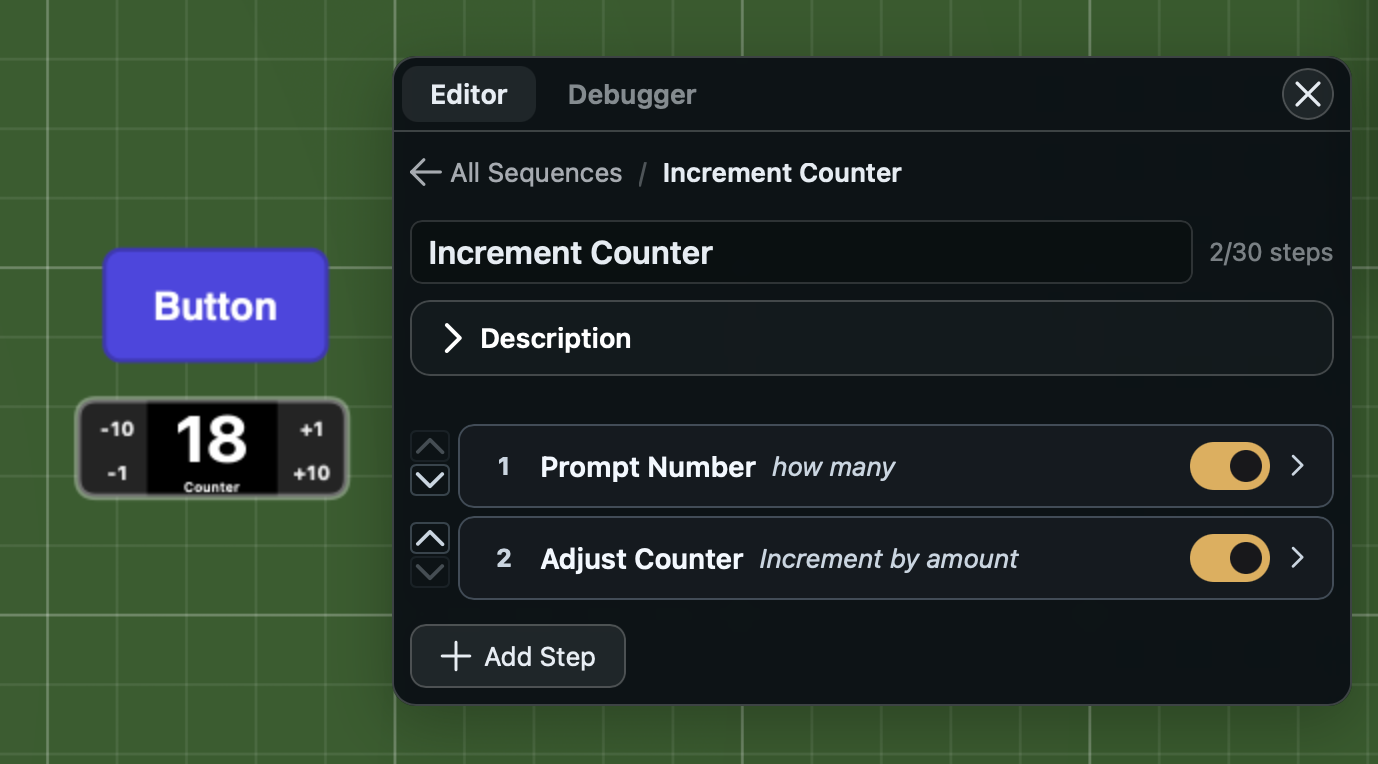
The Sequences panel is a floating, draggable panel that opens from the Sequences button in the toolbar. It is the primary interface for building and troubleshooting sequences.
The panel has two tabs: Editor and Debugger.
Editor tab
The Editor tab has two views: a list of all sequences and a detail view for editing a single sequence.
Sequence list
The list view shows every sequence in the session. Each sequence appears as a card with:
- the sequence name (click to open the detail view)
- an optional description below the name
- up/down arrows to reorder the sequence in the list
- Edit to open the detail view
- Dup to duplicate the sequence and all its steps. The copy keeps the sequence's name
- Del to soft-delete the sequence (moves it to trash)
Below the list, the New Sequence button opens an inline form to create a sequence by name.
Trash
If any sequences have been deleted, a collapsible Trash section appears at the bottom of the list, holding the 100 most recently deleted. Each trashed sequence shows a Restore button to bring it back.
Sequence detail
Clicking a sequence name or the Edit button opens the detail view. A breadcrumb at the top shows the path back to the list.
The detail view contains:
- Name field -- an editable text input for the sequence name. Changes save automatically.
- Step count -- shown to the right of the name (for example, "2/30 steps"). The count turns orange when approaching the 30-step limit.
- Description -- a collapsible section with a text area for an optional description of what the sequence does.
- Step list -- the ordered list of steps in the sequence. Each step shows:
- a step number
- the step type label (such as "Prompt Number" or "Adjust Counter")
- the step's custom label if one is set
- an enabled toggle to turn the step on or off without deleting it
- an expand arrow to open the step's configuration form
- Add Step -- a button at the bottom that opens a step browser organized by category (Stacks, Pieces, Selection, Utility, Flow, Prompts)
Steps can be reordered by dragging. Each step's configuration form is specific to its type and provides pickers for pieces, spaces, sequences, tags, and other parameters.
Steps that point at something deleted
If a step points at a piece, space or sequence that has been deleted, a warning at the top of the detail view names the step and says to pick that piece, space or sequence again in the step's settings. A piece in the trash counts as deleted until you restore it.
Saving refuses a step you add or change to point at something deleted, with the same message, whether you save in the editor or confirm a proposal from Pythia. A step that pointed at the piece before it was deleted, or a step that is turned off, does not stop you saving your other changes; its warning stays until you pick the piece again or remove the step. Testing the sequence while a save is refused does not run, so you never test steps other than the ones on screen.
A deck emptied by drawing or dealing its last card, or broken apart by hand, is set aside rather than deleted. Steps that point at it get no warning and the sequence still saves. Piling its tiles back together, or a Collect into Stack step, brings the same deck back. See Stack.
When a sequence runs into a piece it cannot use, the error names the step and the piece and says what to do: pick the piece again if it was deleted, collect an emptied deck's cards back first, or pick a piece of the right kind.
Debugger tab
The Debugger tab shows a reverse-chronological log of sequence executions: the table's newest 50 runs. Each new run takes the place of the oldest, so the log never grows past 50 however long the table is played. Every run is logged, whatever started it: Run Sequence, a button or timer, a trigger set off by moving, flipping or rolling a piece (or any other table action), the table starting, Simulate Trigger, or an accepted "ask before running" confirmation. A sequence a reactive trigger runs cannot ask a question; if one reaches a prompt step anyway, its run stops there with the reason shown here. Each execution entry displays:
- the sequence name
- the trigger name (if dispatched by a trigger)
- the execution status: Completed, Stopped, Error, or Suspended
- a relative timestamp (such as "2m ago")
Clicking an execution expands it to show:
- a step-by-step breakdown with each step's status (Ran, Skipped, or Error)
- any errors that occurred during a step
- the context values produced by each step
- the final context snapshot for the entire execution
The Debugger tab badge on the tab header shows the count of executions that ended in an error.
Clear empties the log at once. A run still waiting on a prompt stays, since the prompt resumes from it; it leaves the log once it finishes and the log is cleared again. Clear takes out the runs the panel showed when you pressed it; a run that arrived meanwhile stays. A run still waiting is always listed, even after 50 newer runs. When a waiting run finishes, its entry shows how it ended; if 50 newer runs have taken its place, or the log was cleared while it waited, it comes back in as the newest run.
A table can have up to 20 runs waiting on a prompt or a wait-for-all-seats step at once. A run that reaches a prompt past that ends with an error saying so; answer or dismiss a waiting prompt, then run it again.
Panel behavior
- The panel floats above the table and can be dragged by its header to any position on screen
- It stays within the viewport bounds
- The close button in the top right corner dismisses the panel
- Editing requires edit access to the underlying game; without it, the panel shows a message explaining that editing is restricted