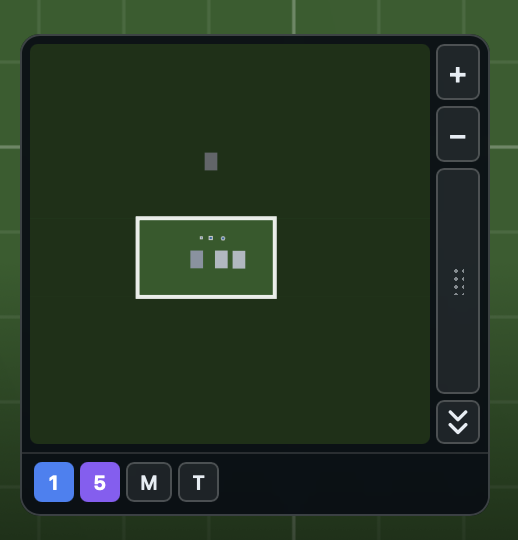
The Minimap is an overview of the entire table rendered as a small always-visible widget in the lower left of the session screen. It shows where pieces and annotations sit relative to the full table extent, shows the current viewport as an outline in your own seat color, shows where every other player is looking in their own seat color, and lets you jump the main view to any region.
Map canvas
The large rectangle on the left is a scaled render of the full table. Pieces appear as small shapes, annotations render in place, and the outline in your seat color shows the current camera viewport.
The map shows exactly what the table shows. A piece you can see and click on the table has a marker here, and nothing else does -- cards inside a deck are covered by the deck's own marker, a token bowl stands in for the token it dispenses, and cards held in a hand stay off the map entirely.
Where everyone is looking
Every player at the table, you included, is drawn as an outline in their own seat color, marking the part of the table they are looking at right now. Yours is the one over the undimmed area and it is drawn on top, so it stays the one you read first when two of you are looking at the same place. A player who is sitting perfectly still still shows an outline: their view is announced when they arrive, not only when they move.
Click to navigate
Clicking anywhere on the canvas outside the viewport rectangle recenters the main view on that point. Movements under five pixels count as a click; anything larger is treated as a drag.
Drag the viewport rectangle
Pressing down inside your own viewport rectangle grabs it. Dragging then slides the viewport around the table in real time, panning the main view to match. Releasing the pointer ends the drag.
Scroll to zoom
Scrolling the mouse wheel over the canvas zooms the main view in or out, anchored on the point under the cursor. This mirrors wheel-zoom on the main table so you can frame a region precisely without leaving the minimap.
Side strip
The vertical strip on the right of the canvas groups the zoom, drag, and collapse controls.
Zoom in (plus)
Zooms the main view in one step, anchored on the current viewport center.
Zoom out (minus)
Zooms the main view out one step, anchored on the current viewport center.
Drag handle
The dotted grab patch between the zoom and collapse buttons is the panel drag handle. Press and drag it to reposition the entire Minimap within the viewport. The panel is clamped so it cannot be dragged offscreen or under the keyboard shortcuts bar.
Collapse
The double down-chevron collapses the Minimap to a compact map-icon pill. Clicking the collapsed pill expands the panel again. While collapsed, the canvas render loop is paused. On a phone-width screen (under 640 pixels wide) the Minimap starts collapsed, so it does not cover your hand along the bottom of the screen; tap the map-icon pill to open it.
Nav buttons
The row beneath the canvas holds jump-to shortcuts.
Seat buttons
One button per seated player, numbered by seat index and colored with that seat's color. Clicking a seat button focuses the camera on that player. When player zones are enabled, it focuses that player's zone; otherwise it focuses the seat itself.
M (focus my area)
Focuses your own player area. Like the seat buttons, it targets your player zone when player zones are enabled and your seat otherwise. This matches the M keyboard shortcut.
T (fit table content)
Fits the main view to all content on the table. This matches the T keyboard shortcut.