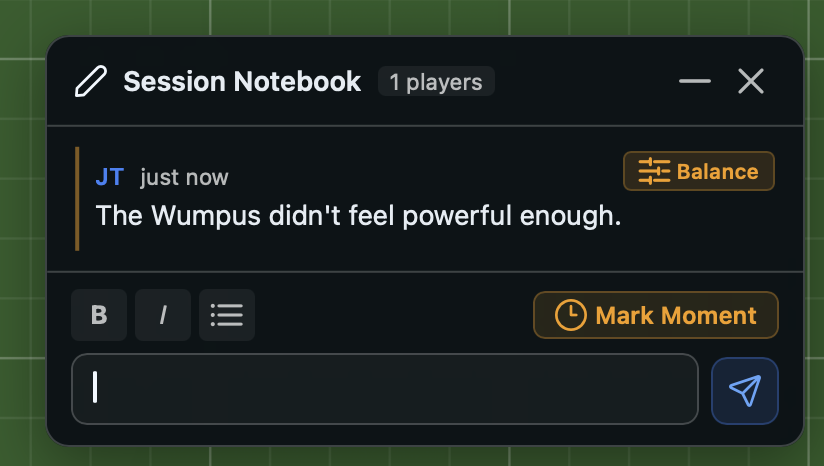
The Session Notebook is a floating, draggable panel that opens from the Notes button in the toolbar. It gives every seated player a shared space to write down observations while playing, without leaving the table.
Panel layout
The notebook panel has three areas stacked vertically:
- Header -- shows the title "Session Notebook", a badge with the current player count, a minimize button, and a close button. Drag the header to reposition the panel anywhere on screen.
- Entry feed -- a scrollable list of every note added during the session, ordered oldest to newest. The feed auto-scrolls to the latest entry when you are already near the bottom.
- Input area -- a rich-text editor with formatting controls and a send button. Only shown when you have permission to add entries.
Writing a note
Type in the editor at the bottom of the panel and click the send button (or press Enter) to post. The editor supports:
- Bold -- toggle with the B button
- Italic -- toggle with the I button
- Bullet lists -- toggle with the list button
Each note is attributed to the player who wrote it, displayed with their seat color and name. A relative timestamp (such as "3 min ago") appears next to the author name.
Marking moments
The Mark Moment button lets you tag a note with a category so it stands out in the feed. Clicking it opens a tag picker with five options:
| Tag | Icon | Use for |
|---|---|---|
| Bug | Warning triangle | Something broken or unexpected |
| Balance | Sliders | A balance concern or observation |
| Fun Moment | Star | A highlight worth remembering |
| Rule Question | Question mark | Confusion about rules or flow |
| Idea | Lightbulb | A suggestion or design idea |
Tagged notes appear with an amber left border and a colored tag label in the feed, making them easy to spot when scrolling back through a long session.
To mark a moment, type your note first, then click Mark Moment and choose a tag. If you click Mark Moment with an empty editor, the editor highlights to prompt you to type something first.
On Pro, or in a Pro session, a marked moment also keeps a picture of the table, shown with the note in the Design Journal.
Entry limit
A session notebook holds up to 200 entries. Each entry can contain up to 2,000 characters of formatted text.
Minimizing
Click the minimize button in the header to collapse the panel to just its title bar. Click the restore button to expand it again. This lets you keep the notebook accessible without it covering the table.
Who can add notes
Any seated player can read the notebook and add notes to it. Spectators are not shown the notebook.