What a tile is
A tile is the canonical single-piece unit for flat components. Cards, stand-alone tiles, and imported two-sided pieces all resolve to tile behavior. card is an alias for tile.
How the system uses tiles
- A tile can exist by itself on the table or be grouped into a stack
- A tile carries face-oriented presentation, dimensions, and artwork
- A tile is the base piece type behind common play actions such as place, flip, drag, exhaust, and inspect
- Tiles support markup, stamps, and reactive triggers
Typical examples
- A standard playing card after it is drawn from a stack
- A blank tile placed directly on the table
- An imported custom tile from a component source
- A location or event card with stamps for tracking state
Actions
Select a tile to reveal its actions in the Action Dock. The available actions depend on the current mode.
Interact actions
- Flip Up / Flip Down -- flips the tile to show its face or its back.
- Exhaust / Un-exhaust -- rotates the tile sideways to mark it as used, or restores it upright. Exhausting is a table state: a tile that goes into a hand comes up un-exhausted and upright again.
- Take -- moves the tile off the table and into your hand. An exhausted tile arrives in your hand un-exhausted.
- Give -- sends the tile to another player's hand.
- Look -- opens a private, pinned view of the tile's face that only you can see.
- Peek -- briefly reveals the tile's hidden face to just you.
- Markup -- toggles the markup editor to draw, write, or erase directly on the tile.
- Flick -- arms a slingshot flick, shown only when the tile sits in a flick-enabled space.
Take and Give appear only when the table has Hands enabled, and Peek appears only when Peek mode is enabled. Look and Peek are also on the right-click menu for a tile, for a tile in your hand, and for a stack, so you can open the private view without selecting the piece first.
Edit actions
- Edit -- opens the tile's settings dialog.
- Copy -- duplicates the tile onto the table.
- Rotate Left / Rotate Right -- rotates the tile by the rotation increment.
- Hone -- toggles the Hone controls for nudging the tile's position and size precisely.
- Lock / Unlock -- toggles position lock so the tile cannot be dragged without first selecting it. A locked tile resting on a larger piece still moves with that piece (see Pieces resting on other pieces).
- Delete -- removes the tile from the table.
Settings
Open a tile's settings by selecting it and choosing Edit Tile from the Actions Dock. The settings dialog has three tabs: Properties, Trigger, and Stamps.
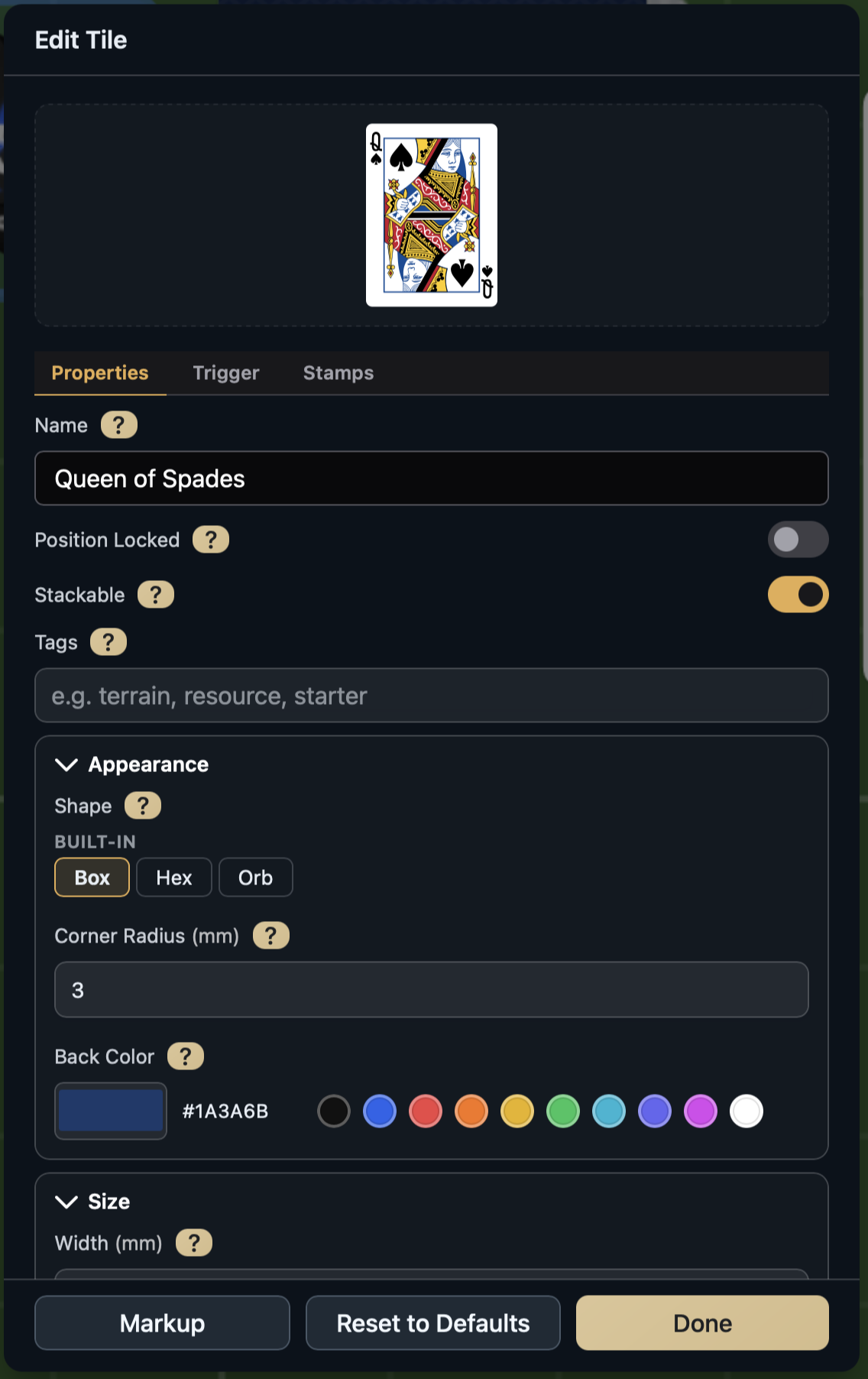
Properties
The Properties tab controls the tile's identity, appearance, and dimensions.
- Name -- display name shown in inspect panels and search. An imported tile shows the name its game gives it. If you give it another name here, that name stays when the piece is renamed on the Import Pieces page; the field says so and offers Use component name, which puts the game's name back; once you save, the tile follows the game's name again, including when you rename the piece on the Import Pieces page. Undoing a name you gave here does the same: the tile follows the game's name as it is now.
- Position Locked -- prevents the tile from being dragged without first selecting it
- Stackable -- allows the tile to join stacks when dropped on other tiles
- Tags -- searchable labels used by spaces, triggers, conditions, and filters
Appearance
- Shape -- box, hex, orb, or a custom SVG shape
- Corner Radius -- rounds the corners of box-shaped tiles
- Back Color -- solid color shown when the back is not using artwork
Size
- Width and Height -- physical dimensions displayed in the table's preferred unit, stored internally in millimeters
- Maintain Aspect Ratio -- links width and height so resizing preserves proportions
Orientation
- Rotation -- rotates the tile on the table surface in degrees
- Exhaust Angle -- rotation applied when the tile is exhausted (default 90 degrees, try 60 degrees for hex tiles)
- Face Up Direction -- sets which edge counts as "up" when the face side is visible (0, 90, 180, or 270 degrees)
- Back Up Direction -- controls back orientation relative to the face (match face, or a fixed 0/90/180/270 degrees)
Artwork Background
When enabled, places imported artwork on a solid color background instead of the default tile color. Useful when artwork has transparent regions that should render against a specific color.
Markup
Markup lets you draw, write, and erase directly on a tile's artwork during a session. Open it from the tile settings footer or by selecting a tile and choosing Markup from the Actions Dock.
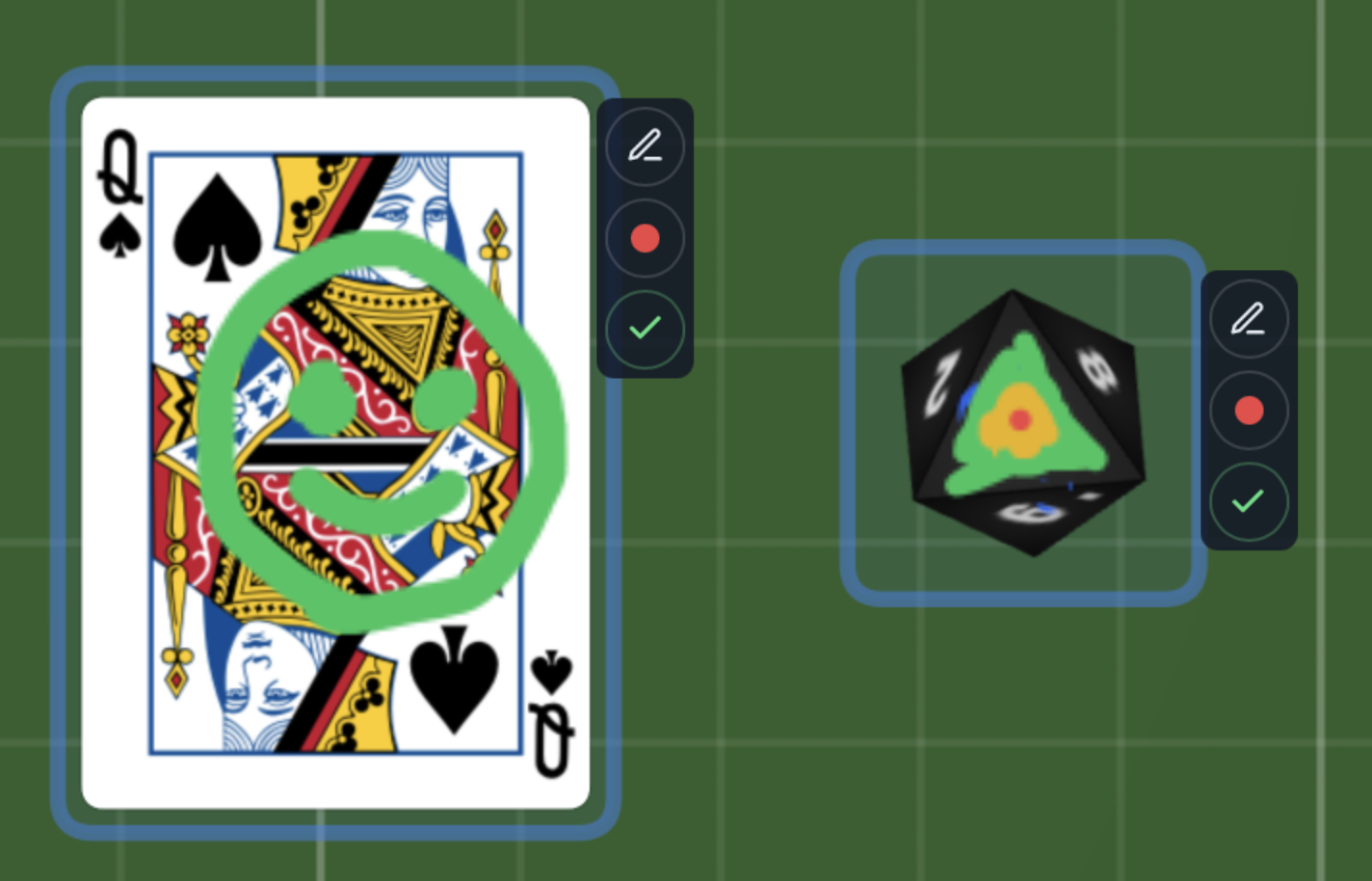
Tools
- Marker -- freehand drawing with customizable color and brush size (2--80 px)
- Text -- click to place text labels with adjustable font size (14--120 px)
- Eraser -- remove markup strokes with adjustable size
Per-face markup
Markup is stored separately for each face. For standard tiles, switch between Front and Back. For dice, each face has its own markup layer that maps to the die's UV polygon for accurate 3D rendering.
Controls
- Rotation -- rotate the editor view (0, 90, 180, or 270 degrees) for comfortable drawing at any angle
- Zoom -- scale from 10% to 300% for fine detail work
Markup auto-saves as you draw.
Stamps
Stamps are reusable interactive regions placed on a tile's artwork. They track per-tile state that players can toggle or fill in during play -- useful for health trackers, checkboxes, resource slots, scoring marks, and note fields.
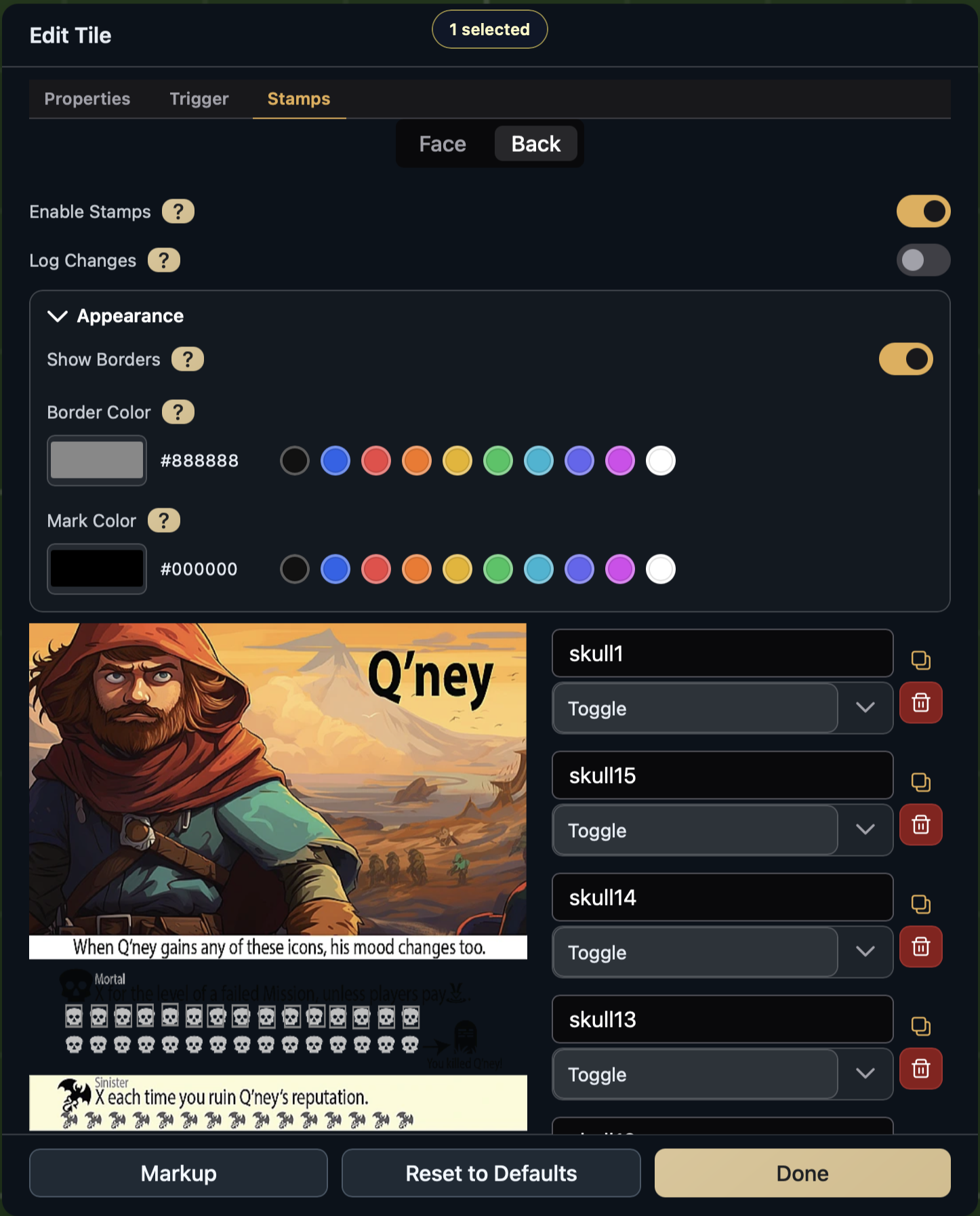
Stamp types
| Type | Behavior |
|---|---|
| Toggle | Two-state: empty or marked. Click to switch. |
| Tri-Toggle | Three-state: empty, marked, or crossed. Click to cycle. |
| Text | Free-text input field. Click to open a box just above where you clicked and type. The box always opens fully on screen. |
Defining stamps
Open the Stamps tab in tile settings to manage stamp definitions. Each stamp has:
- Name -- unique label for the stamp (used for logging and automation references)
- Type -- toggle, tri-toggle, or text
- Side -- whether the stamp appears on the face or back of the tile
- Position -- drag the stamp region on the artwork preview to set its location and size
To repeat a stamp in rows and columns, open its duplicate menu and choose Grid..., then set the columns, rows and gaps. Every stamp must lie on the tile, so when part of the grid would run off it, the stamps that would are outlined in red and you cannot create them until the grid fits.
Stamps defined on a tile appear on every copy of that tile in the session.
Appearance
Global stamp appearance settings control all stamps on the tile:
- Border Visible -- show or hide the stamp region outline
- Border Color -- color of the stamp region border
- Mark Color -- color of the check/cross marks
Stamps from Pythia
Pythia can lay out stamps for you, for example a score sheet for Yacht or one you describe. On a tile already on the table it replaces the tile's stamps, keeping the ones that should stay and any marks already on it. For a new sheet it adds blank tiles that each carry the sheet, a pad players draw a sheet from. Labels are text stamps with the words written in, so players can still edit them. You confirm each proposal before anything changes, and undo takes it back.
Stamp logging
Enable stamp logging to record every stamp state change in the session log. Useful for tracking player actions during playtesting.
Triggers
Tiles support one reactive trigger event:
- Piece Flipped (
pieceFlipped) -- fires when the tile is flipped face-up or face-down
Configure the trigger in the Trigger tab of tile settings. Each trigger case pairs a condition with a sequence to run when the condition is met. See Triggers for full details on dispatch modes, cases, and context.