The table is the central area of a session. It is where pieces, spaces, and annotations are placed, moved, and interacted with during play. Most of what happens in a session happens here.
Navigating the Table
The table has a full camera you can pan and zoom to move around the play surface. These controls work in both View and Edit modes, and operate only on your own view: other players each have their own independent cameras.
- Drag to pan. Press and hold the left mouse button on any empty area of the table, then drag. The viewport follows the pointer at 1:1 speed so the spot you grabbed stays under the cursor. Dragging directly on a piece picks that piece up instead, and holding Shift starts a marquee selection rather than a pan.
- Mouse wheel to zoom. Scrolling the wheel over the table zooms in or out anchored on the point under the cursor, so the location you are pointing at stays put while the view scales around it. Wheel zoom speed is configurable in the Keyboard Bindings editor.
- Pinch to zoom (touch). On touch devices, a two-finger pinch zooms around the midpoint of your fingers, while a single-finger drag on the background pans.
- Arrow keys to pan. With keyboard shortcuts enabled, the arrow keys nudge the viewport in their respective directions. The bindings can be changed in the Keyboard Bindings editor.
- Focus shortcuts. The
Mkey focuses your own player area and theTkey fits all table content into view. Both are also available as buttons under the Minimap. - Minimap jumps. Clicking on the Minimap canvas recenters the main view on that point, and dragging the white viewport rectangle there pans the table in real time.
Editing the Table
The table itself is configured through the Table Settings dialog. Open it by switching the Action Dock to Edit mode with nothing selected and choosing Edit Table, or from the table's right-click context menu. The dialog has four or five tabs depending on your privilege level.
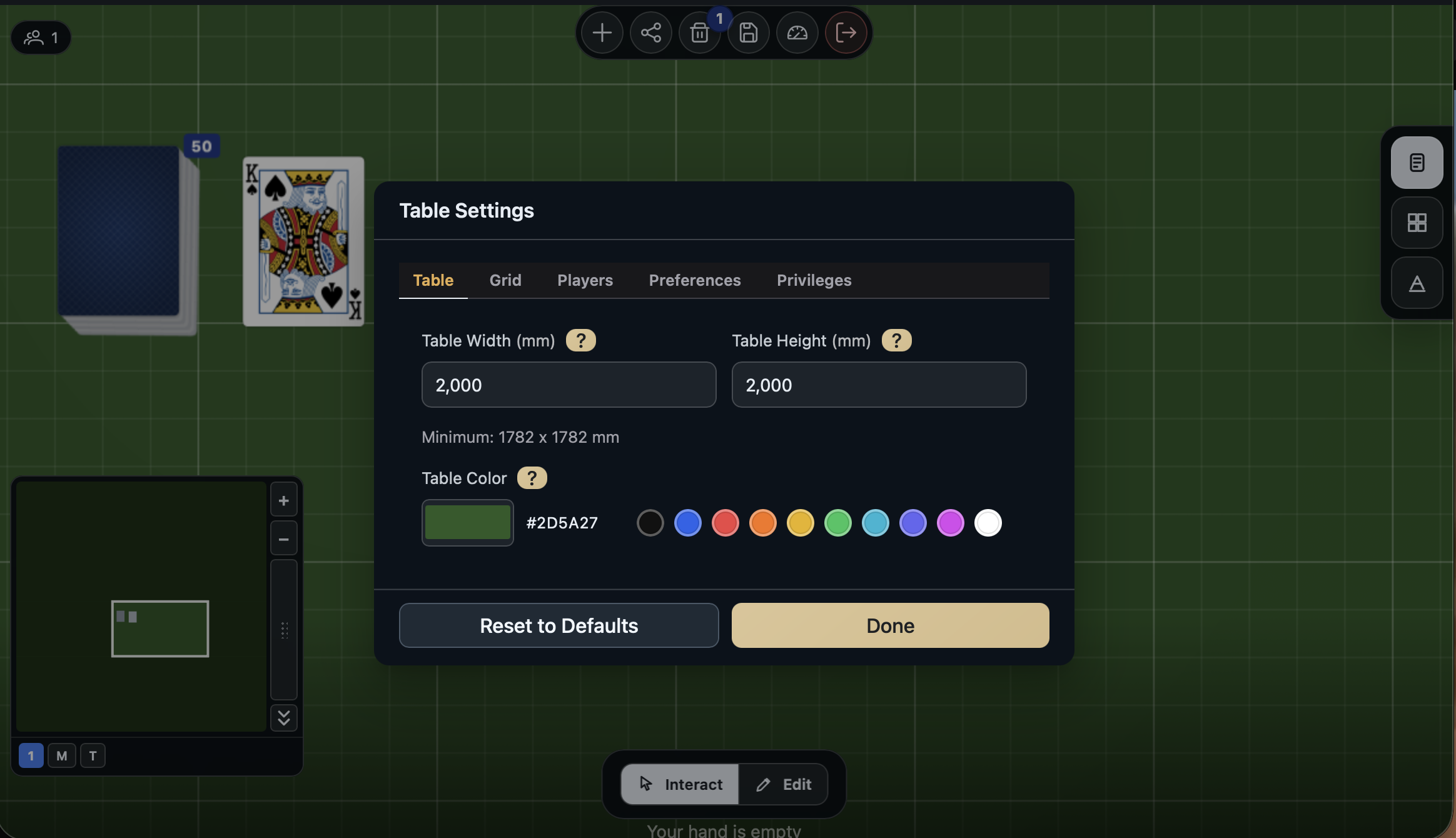
Table
Controls the overall dimensions and appearance of the play surface.
- Table Width and Table Height — the full table size in the table's preferred units. The smallest table is 500 x 500 mm (about 19.69 in square), and larger when what is on it needs more room; the maximum is 12,000 mm in each direction (roughly 12 meters, or 472.44 in). A hint below the fields shows the current minimum in the active unit. Every limit the dialog names is in the table's unit, with a minimum rounded up and a maximum rounded down, so typing the number it shows is always accepted. Making the table smaller moves everything on it inward, trimming each side in proportion to the empty space there. On a large table this takes a few moments: the table shows Resizing the table… and cannot be played until it is done, then it reloads at its new size for everyone at it. If what is on the table does not fit the new size, the table keeps its size, nothing moves, and a notice under the toolbar says Resizing the table stopped before it finished with the smallest size it can be: move what is on the table so it fits and press Retry on the notice to make it the size you asked for, or press Close. A resize that stops for any other reason says so on the same notice, with Retry, for everyone seated at the table and the host. If it stopped before anything moved, the table can be played meanwhile; if it stopped once part of what is on the table had moved, the table stays as it is until someone presses Retry, which finishes moving everything and sets the new size, or the host resets the table. Once a smaller size has moved what is on the table, the actions taken before it can no longer be undone or redone, since undoing them would put pieces back where they were before everything moved; undo says so. The size change itself can still be undone. Every piece counts at the size it is drawn: an image or 3D model token at its full width and height, a deck with the edge drawn along its side, an open book with both pages and its spine, and a button with its base. Player areas count only while player spaces are on: with them off the table does not show them, so they do not hold the table's size. Turning player spaces back on lays the areas out again on the table at its new size. A table cannot be made smaller while it is being saved as a table configuration or while its game content is being updated, and it cannot be saved while it is being made smaller; an update of its game content waits until it is done. Making the table larger takes effect at once.
- Table Color — the base color of the table surface, edited with a color picker.
- Background Image -- an image used as the table surface, with Image Mode setting how it is sized: Fill, Fit, Tile or Center. Only people who can edit the game can upload one; anyone who can change the table's settings can remove it. A background is one of the game's files: it counts toward the game owner's storage while one of the game's tables shows it.
Grid
Controls the grid overlay and snapping behavior.
- Grid Type — Square, Hex (Flat-top), or Hex (Pointy-top).
- Snap to Grid — when on, moved entities snap to grid intersections.
- Show Grid — shows or hides the grid overlay on the table. Snapping still works when the grid is hidden.
- Grid Size — the spacing between grid lines, from 5 mm to 200 mm. The field is disabled when both Snap to Grid and Show Grid are off.
Players
Controls seating, player spaces, and hand mechanics. Several groups of fields live inside collapsible sections with their own on/off toggles.
- Max Players — the maximum number of seated players at this table, bounded by the session's maximum seat count and by the game owner's plan: 4 on Starter, 6 on Casual, 16 on Pro. A table set higher before its owner's plan allowed fewer keeps its setting, and can be lowered but not raised. Raising it adds a player area for each new seat. If a new area would land on another space, every player area is laid out again, taking the pieces in it along; if there is still no room, the change is refused and the table stays as it was. Lowering it removes the areas of the seats past the new count, with the spaces inside them; the pieces in them stay on the table, let go of in parts over the next moments when there are a great many.
- Player Spaces (collapsible, toggled) — when enabled, shows designated player areas on the table. Inside the section:
- Player Space Width and Player Space Height set the size of each player's area, in the table's units, from 1 mm. The largest width is the table width less a 10 mm gap from the table's edge; the largest height is the table height less that gap and, when the hand lane is on, less the hand lane and the 18 mm between it and the player area. The dialog names both limits in the table's units when a size is outside them.
- When a save moves or resizes the player areas, each area moves at once; the pieces in it follow, and a smaller area lets go of the pieces it no longer covers. An area holding a great many pieces has them follow in parts over the next moments, each part its own undo step.
- Saving shows on the table the moment you save: the new size, colour and unit, and every player area added, moved, resized or removed, before the server answers. If the save is refused, the table goes back to how it was and you see why. A smaller table is the one exception that waits: it keeps its size while everything on it moves inward, then takes the new size.
- Hand (collapsible, toggled) — when enabled, gives each player a hand at the bottom of the viewport. Inside the section:
- Max Hand Size sets the maximum number of tiles a single player may hold at one time, from 1 to 50.
- Hand Lane (collapsible, toggled) — when enabled, shows a dedicated hand lane attached to each player space. Requires Player Spaces and Hand to both be enabled. Inside the section:
- Hand Lane Height sets the height of the hand lane in the table's units, at least 10 mm (0.4 in, 1 cm); the arrows step by 5 of the table's unit. There is no upper limit of its own, but a deeper lane leaves less room for the player areas above it.
- Turn Tracking (collapsible, toggled) -- turns on whose-turn-it-is tracking for the table. When on, a Turn Direction field (Left or Right) appears inside the section, matching the Pass Left / Pass Right direction. See Turn Tracking for how turn order, changing the turn, and seat changes all work, and what the indicator shows once it is on.
Preferences
Session-wide preferences that affect your own view and interaction.
- Keyboard Shortcuts — enables or disables keyboard shortcuts for this session.
- Watch Replay — shows or hides the replay timeline panel. The timeline describes each action in plain words, such as "Seat 2 drew 3 cards from Deck A". It counts the pieces the action acted on: the cards already in a hand that slide along when a card joins or leaves it are not counted, so drawing one card into a hand of five reads "drew a card". Saving the table settings with nothing changed is not an action and does not appear. While the session is still being played, the timeline does not name the pieces an action touched, so a draw into a hand never reveals the card; it reads "Seat 2 drew a card from a deck". Once the session ends, the replay names every piece. Undo and redo show in the timeline as entries of their own ("Undo: ...", "Redo: ..."), and an action that was undone stays in it, dimmed, so you can scrub back to the moment before it was taken back. Choose Actions that stand in the timeline's filter to see only the actions that were not undone. The replay can rebuild the table as it stood at any point in its history; on a table played before undo was recorded this way (October 2026), a point older than its oldest saved snapshot says it can't be rebuilt. If part of such a table's history could not be carried over to the new form, undo and redo stop at the moment it was converted and say why, and the replay rebuilds every later point from a snapshot taken then. A piece removed from the game more than 30 days ago, whose artwork is no longer kept, shows in the replay as a plain card with its name. The replay shows what each action changed. A change made outside any action, such as a game update that renames a card, removing a custom shape, or starting the game, is not shown at the moment it happened: it appears from the next snapshot the table saved after it. If a stretch of the table's recorded history is damaged, the replay says so and names the action where it breaks, rather than showing a table that may be wrong. People who can edit the game also get Download log there, with CSV and JSON, which saves the session's whole action log. See Sessions API for what the file contains. They also get New table from here, which starts a new table as this one stood at the moment the replay shows (or as it stands now, outside the replay), for another group to play on from there; this table stays as it is, covered with a progress bar for everyone at it until the new table has been copied from it. It comes with Pro: at a table of a game whose owner is on a Pro plan, or in a Pro session. Elsewhere the button is greyed out and says how to get it. The new table is a normal session, and starting it uses up nothing.
- Preferred Units — Millimeters (mm), Centimeters (cm), or Inches (in). Controls which units are used in table-facing numeric fields. All dimensions are stored in millimeters regardless of this setting.
- Keyboard Bindings — a button that opens the keyboard bindings editor.
- Discord Voice — a button that opens the Discord voice panel for the session. Shown whenever the session has Discord set up.
Privileges
Controls who can do what at the table. This tab is visible only to seated players who currently pass the Edit Privileges Access check, which is itself one of the settings on the tab. Spectators never see it.
Three settings on this tab use the same set of access levels:
- Everyone — any seated player.
- Session Starter — only the player who started the session.
- Game Owner + Collaborators — only users with edit access to the underlying game.
The settings:
- Edit Privileges Access — who can change the settings on this tab.
- Table Content Management — who can add, remove, and edit pieces, spaces, and annotations on the table.
- Markup Access — who can open the markup editor for tiles and dice.
- Peek Action — where the Peek action is allowed to reveal tiles. Options are Disabled, Player Area Owner, and Everywhere.
- Revealed Hands — makes this an open-handed table. Every seated player sees the contents of every other player's hand, both in the hand lane on the table and from the Players Panel. Seeing a hand is not permission to take from it. Spectators still see hands hidden.
- Allow Looking At Other Hands — lets players inspect the contents of other players' hands without taking anything.
- Allow Searching Other Hands And Taking A Tile — lets players search another player's hand and take a specific tile. It also lets them delete a tile or stack in another player's hand lane, and take a tile from it, from its right-click menu. Editing one also needs Revealed Hands, so that they can see what they are editing.
- Allow Taking A Random Tile From Other Hands — lets players take one random tile from another player's hand without looking first.
Resetting
A Reset to Defaults button in the dialog footer restores every setting in the dialog to its defaults after confirmation. Done closes the dialog and keeps any changes that have already been applied.