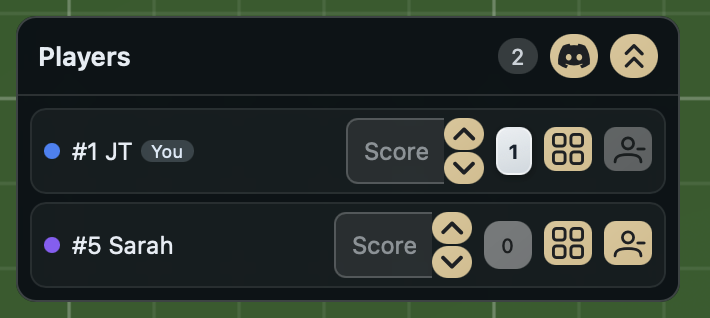
The Players Panel lists everyone seated at the table. It floats in the upper left of the session screen, can be dragged around when expanded, and collapses to a single pill that shows the seat count.
Header
The header spans the top of the expanded panel and holds panel-wide controls.
Players (drag handle)
The Players label and empty area of the header act as a drag handle. Press and drag to reposition the panel anywhere within the viewport. The panel is clamped to the window so it cannot be dragged offscreen.
Seat count badge
The rounded pill next to Players shows the total number of seats currently at the table.
Join Discord
The blue Discord button opens the Discord voice panel for the session. The panel never opens on its own when you join, so this button is how you reach it, and it stays available for the whole session -- opening the invite does not take it away. The button is hidden only when the session has no Discord set up at all.
Collapse
The double up-chevron button collapses the panel down to the compact pill in the corner. Clicking the collapsed pill expands the panel again.
Player row
Each seated player gets one row. Rows are sorted by seat index and highlight with a pulsing border when the seat is targeted by a panel action.
Seat color dot
The small colored dot on the left is the seat color. It matches the player's tokens, zone highlights, and cursor color elsewhere in the session.
Name and seat number
Shows the seat number and player display name, for example #1 JT. The You pill marks your own seat.
Two status icons can appear inline next to the name:
- A yellow pulsing warning triangle means the player is disconnected.
- An eye-slash icon means the player is blindfolded and cannot see hidden information.
Turn
While turn tracking is enabled for the table, the row for whoever currently holds the turn is highlighted, and the name becomes a button -- clicking any seat's name sets the turn to that seat, one of the four surfaces listed under Changing the turn. When tracking is not enabled, neither the highlight nor the button appears.
Score input
The text field labeled Score holds the player's current score. Type directly into it to set an arbitrary value. The field is read-only unless score editing is enabled for the table.
Score up / Score down
The stacked up and down chevrons to the right of the score field increment or decrement that player's score by one. They follow the same enabled state as the score input.
Hand count
The small tile shape showing a number is the player's hand count. It is an indicator on every row; the actions that reach into a hand live in the row's actions menu.
Actions
The vertical three-dot button at the right of each row opens that row's actions menu. Everything the panel can do to a seat lives here, so the row itself stays readable at the panel's narrow width. The button shows a spinner while a seat action is in flight, and only one seat action runs at a time.
What the menu offers depends on whose row it is.
On another player's row:
- Focus Area moves the camera to that player's personal zone. Disabled when player zones are not enabled for the table.
- Hand Actions opens the hand menu for that seat, where you can peek, deal, or otherwise reach into their hand. Disabled when hand actions are unavailable for the table.
- Swap With
<name>trades seats with that player. Both of you keep your hands and player areas, they simply move to the other chair, and the turn goes with whoever held it. This entry only appears when you are seated yourself, because a swap needs a seat to offer in return. - Kick Player removes that player from their seat. Only shown to users with permission to kick.
On your own row:
- Focus My Area moves the camera to your own zone.
- Move to Seat... opens a picker listing the open seats, and moves you to the one you choose. Your hand and anything you are dragging come with you. This entry only appears when a seat is actually open.
- Become Spectator gives up your seat and keeps you at the table as a watcher. Your hand and player area are released to the table, and you can take an open seat again from the spectator toolbar. This is how a host runs a table without playing at it.
Watching without giving up the table
Stepping back to the rail gives up a seat, not the session. If you started the session, you keep everything that is not the seat itself: you can still move and edit pieces, add and remove components, change spaces and annotations, edit table settings, kick players, undo, and end or reset the table. The banner says "Watching without a seat. You still run the table."
You also keep your presence at the table, which is what makes teaching from the rail work. Players see your cursor in a neutral slate colour that belongs to no seat, and pressing Y still fires a Yo so you can point at the exact card you are talking about.
What you do give up is the seat: no hand, no player area, no turn, and no place in a sequence that waits for every seat. Actions that reach into those -- taking a card into your hand, passing a held stack, answering a "wait for every seat" prompt -- ask you to take a seat first. Join as Player in the spectator toolbar puts you back in a chair whenever you want one.
Anyone else who watches is a plain spectator: they see the table, the players' cursors, and who is connected, but they have no cursor or Yo of their own.
- Leave Game removes you from the session entirely.