A token is a single physical object on the table whose behavior is driven by its shape rather than by face art. Tokens are used for pawns, markers, trackers, counters, and any piece whose identity comes from geometry and color. A token has a kind, a size, a color, a position, and a 3D orientation.
Kinds
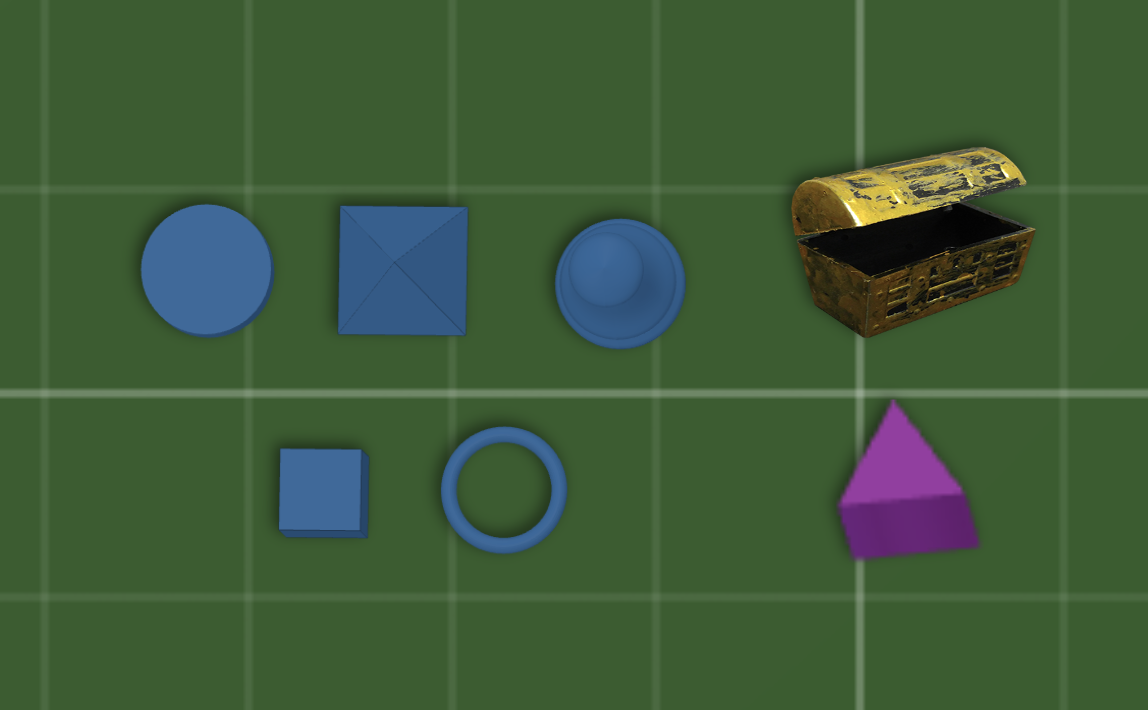
A token always has a kind. The kind is fixed at creation and determines the token's geometry and which size controls apply. Five kinds are built in, and two additional kinds come from importing external assets.
- Block -- a rectangular prism sized by width, height, and depth.
- Disc -- a cylinder sized by diameter and thickness.
- Pyramid -- a four-sided pyramid sized by base width and height.
- Pawn -- a humanoid figure. Pawns are the only tokens that can hold attached rings.
- Ring -- a flat ring. Rings are the only tokens that can be attached to a pawn.
- Image Token -- a flat sprite whose appearance is an imported image.
- Model Token -- a 3D piece whose shape is an imported mesh.
Built-in tokens are added from the Entity Browser. Image Tokens and Model Tokens are created automatically when you import a game component whose art defines the shape.
Customization
This section covers what you can change about how a token looks and behaves. Properties are edited in the token's own editor panel, opened with the Edit action, or through the batch editor when multiple tokens are selected.
What you can change
- Name -- the label shown in menus, tooltips, and the Entity Browser.
- Face labels -- text printed on a Block or Disc. See Kind-specific properties below.
- Fill color -- the primary color of the token's geometry. Used by Block, Disc, Pyramid, Pawn, Ring, and Model Token. Image Token ignores fill color because its appearance is driven by the imported image.
- Dimensions -- width, height, and depth. Stored in millimeters and displayed in the table's preferred units.
- Corner radius -- rounds the edges of Block tokens. Has no effect on other kinds.
- Stackable -- a toggle. When off, the token refuses to join a stack or accept other tokens on top of it.
Kind-specific properties
- Attached rings (Pawn only) -- a pawn can carry a stack of rings around its body. Each attached ring tracks its own name, color, width, depth, and rotation independently of the pawn.
- Face labels (Block and Disc only) -- text printed on the token's faces, edited on the Labels tab of the token editor. These are the only two kinds with a pair of parallel flat faces to print on, so the tab appears only for them. Labels are off by default. There is no text size setting: the text is sized to fit the face, so a longer label prints smaller rather than overflowing, and it wraps onto as many as three lines when that lets it print larger. Same Both is on by default, so one typed label appears on both faces; turn it off to give the underside its own text, or to leave the underside blank. Text Color starts on whichever of black or white reads against the token's own color, and keeps following that color until you pick an ink of your own.
- Imported mesh (Model Token only) -- the mesh defines the token's shape. Dimensions still apply as a bounding box, and fill color tints the mesh.
- Imported image (Image Token only) -- the image is the face of the token and replaces the color-driven appearance used by the built-in kinds.
Imported tokens
Image Tokens and Model Tokens share most of the behavior described on this page: they have a name, dimensions, a position, a 3D orientation, and they participate in stacking and the actions listed below. The main differences are that an Image Token ignores fill color entirely, and both imported kinds are created through the import flow rather than from the Entity Browser.
Placement and transforms
Every token has a position and a full 3D orientation on the table.
- Position is stored as x and y table coordinates in millimeters and displayed in the table's preferred unit.
- Z-index controls which token renders on top when two tokens overlap. New tokens are placed above existing tokens.
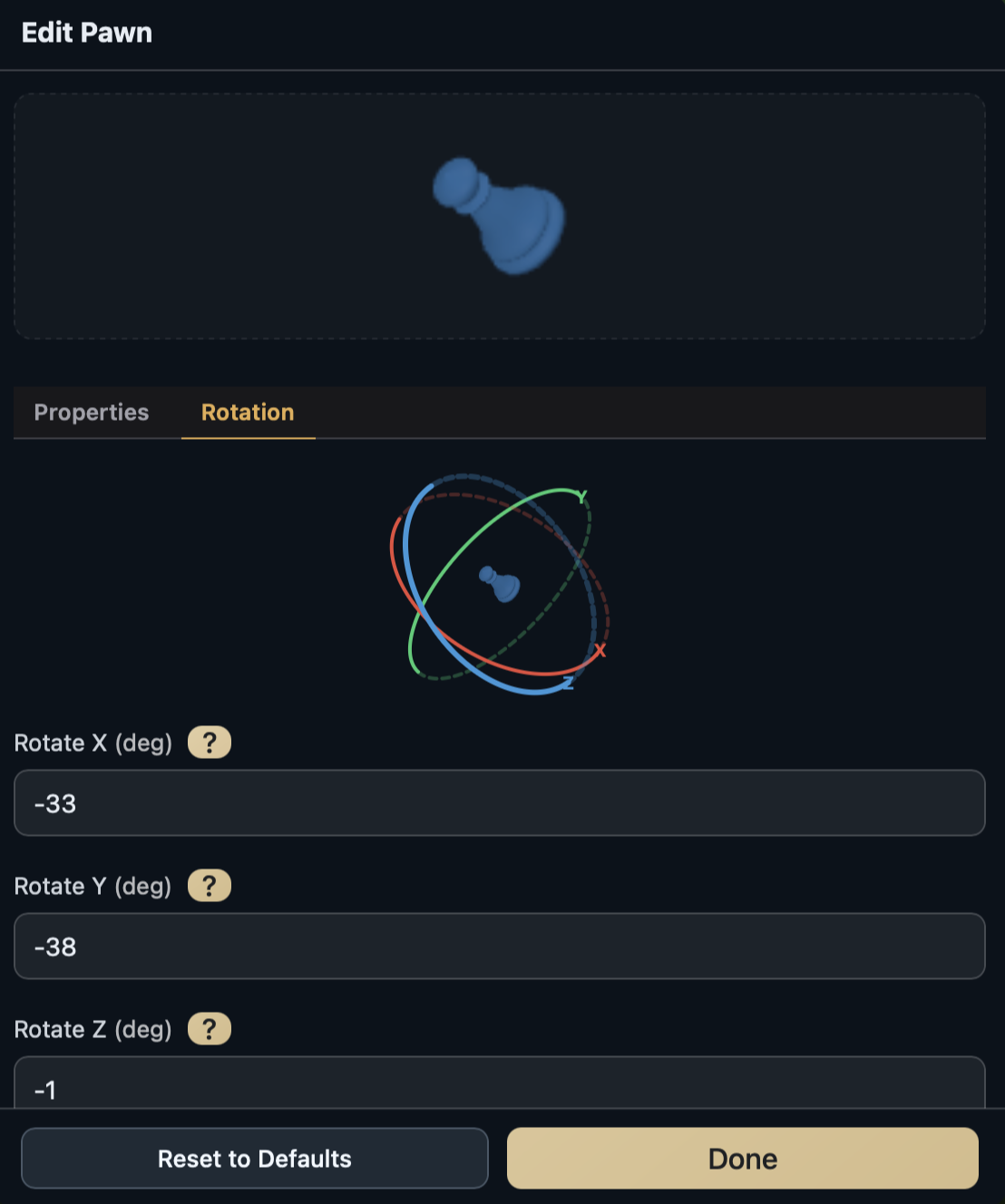
- Rotation is a 3D rotation with independent X, Y, and Z angles in degrees. Rotation is edited through the Rotation tab of the token's editor panel, not directly on the table surface. Most tabletop use only involves the Z axis, but the other axes are available for propping a token on its side.
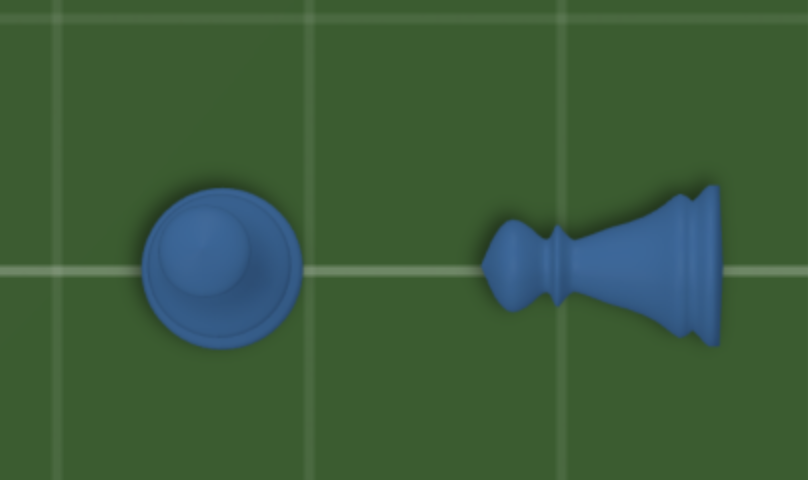
- Exhaustion is a secondary orientation. An exhausted token is tipped over from its standing position to indicate it has been used; un-exhausting returns it to standing. It is a display state only and does not change any other property.
- Position lock freezes a token in place. Locked tokens can still be selected and edited, but they cannot be dragged or rotated until unlocked. A locked token resting on a board or card still moves with it (see Pieces resting on other pieces).
Stacking
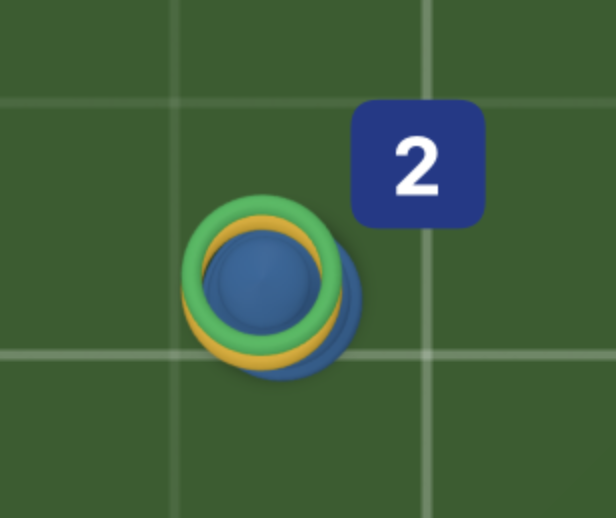
Tokens can stack on each other to form a pile. A stack always renders as four tokens piled together regardless of how many are actually in it; the true count lives in the badge beside the stack. A stack of two and a stack of two hundred look the same on the table. See also the Token Bowl and Bag utility pieces for containers that group tokens.
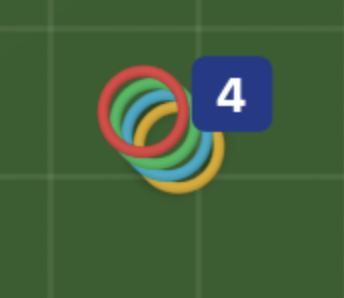
- Drop a token on top of another token to form or grow a stack.
- Drag a token off the top of a stack to remove it. The remaining tokens stay stacked.
- A stack can mix tokens of different kinds, colors, and sizes.
- Each token keeps its own face labels while it is in a stack. The stack shows the label of the token currently on top, and a token taken back off reads its own label again.
- A token whose Stackable property is turned off will neither join a stack nor accept other tokens on top of it.
- While a token is part of a stack (its stack count is greater than one) it cannot be exhausted; unstack it first.
Actions
The action dock runs in two modes: Interact and Edit. Each action below is marked with the modes it appears in, and whether it is available on a multi-token selection.
| Action | What it does | Interact | Edit | Multi |
|---|---|---|---|---|
| Flip | Turns the token over to show its other face. Offered only when the two faces differ, which for a built-in token means it carries a different label on each side. | ✓ | ✓ | |
| Exhaust / Un-exhaust | Toggles the token between standing up and tipped over. Only available when the token is not part of a stack. | ✓ | ✓ | |
| Return | Sends the token back to a matching Token Bowl on the table. In multi mode the action appears only if every selected token has a matching bowl. | ✓ | ✓ | |
| Detach Ring | Removes the topmost attached ring from a pawn. Pawn with rings only. | ✓ | ||
| Detach All Rings | Removes every attached ring from a pawn in one step. Pawn with rings only. | ✓ | ||
| Look | Opens an inspector showing details and statistics about the token. | ✓ | ||
| Gather | Animates the selection to a single point on the table. Requires at least two tokens. | ✓ | ✓ | |
| Batch Edit | Opens an editor for the properties the selected tokens have in common. | ✓ | ✓ | |
| Edit | Opens the token's editor panel for full property editing. | ✓ | ||
| Copy | Duplicates the token on the table. Applies to the whole selection in multi mode. | ✓ | ✓ | |
| Hone | Enters Hone mode for nudging the token's position, rotation, and size with the keyboard. | ✓ | ||
| Lock / Unlock | Toggles position lock. A locked token cannot be dragged or rotated. Applies to the whole selection in multi mode. | ✓ | ✓ | |
| Delete | Removes the token from the table. Applies to the whole selection in multi mode. | ✓ | ✓ |