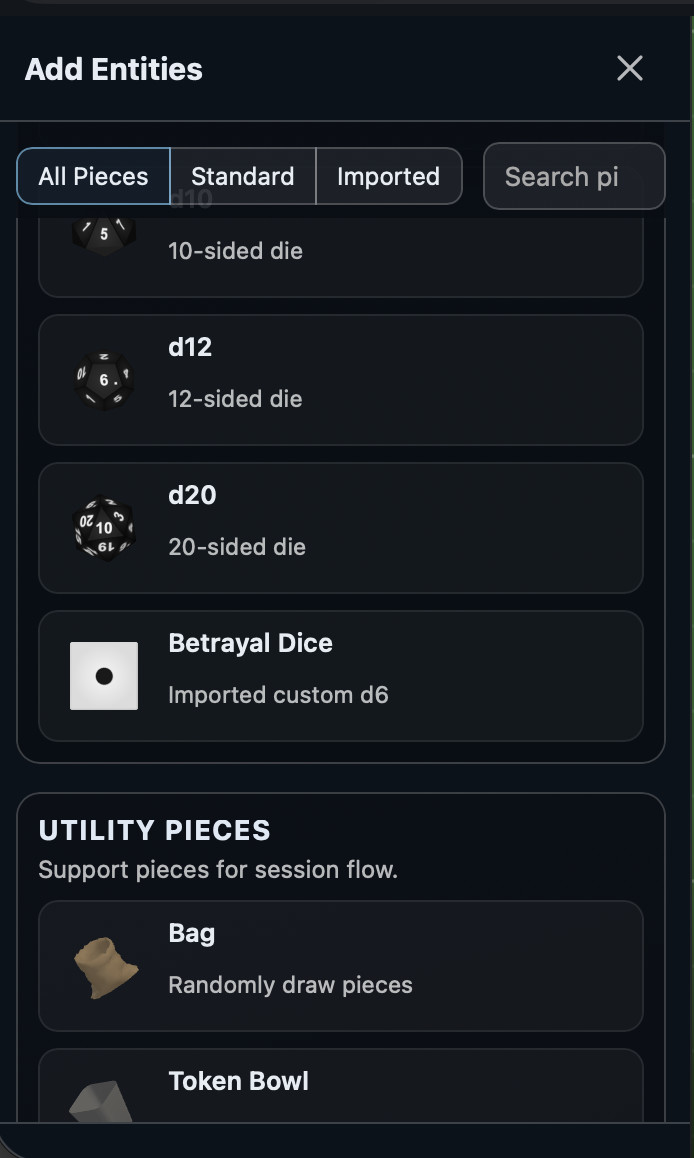
The Entity Browser is the panel that opens from the Toolbar's Add control. Its header reads Add Entities and it shows a filterable catalog of everything you can place on the table.
Layout modes
The same panel is reused in three layouts. It always lives on top of the session:
- Side pane. The default when there is room alongside the table. The pane docks to the edge of the screen and stays pinned while you drop pieces.
- Modal overlay. On narrower layouts the panel opens centered over the table with a dark mask behind it. Clicking the mask closes it.
- Fullscreen. On very small screens the panel fills the viewport. The header close button returns to the session.
The top-right X closes the browser. In modal mode, clicking the background mask also closes it.
Filter bar
Three chips along the top narrow the catalog down by source of the piece:
- All Pieces. Shows both standard and imported catalog entries. This is the default.
- Standard. Shows only the built-in pieces that ship with Playtest Parlor.
- Imported. Shows only pieces you have imported into this game, such as custom decks, tile sets, custom dice, image tokens, and 3D model tokens.
Next to the chips is a Search field. Typing filters the visible catalog by piece name as you type. The active source chip and the search text are applied together. When nothing matches, the panel shows No pieces match that source filter and search text.
Catalog categories
Pieces are grouped into labeled categories. Each category has a title, a short description, and a grid of product cards you can click to start placing the piece.
- Cards and Tiles. Standard playing cards, blank tiles, and any imported decks or tile sets from this game.
- Tokens. Block, Disc, Pyramid, Pawn, and Ring tokens, along with any imported image or 3D model tokens.
- Dice. Standard d2 (coin), d4, d6, d8, d10, d12, d20, and Spinner, plus any imported custom dice for this game.
- Utility Pieces. Support pieces for session flow: Bag (randomly draw pieces), Token Bowl (assign a token and dispense copies), Counter (numeric tracker), and Timer (countdown with start, pause, and stop).
- Spaces. Placement control points and areas: Box, Orb, Hex, and Point.
- Space Grids. Generators that build whole grids of spaces at once: Square Grid and Hex Grid.
- Annotations. Labels and markup you can drop in directly: Box, Orb, Triangle, Hex, Arrow, and Text.
Every product card shows a live 3D or 2D preview of the piece, the title, and a short subtitle describing what it is.
Selecting a piece
Clicking a product card takes you to that piece's configure step. For simple pieces this drops the piece straight onto the table. For pieces with choices (for example a Space Grid), it switches the panel to a config view where you pick sizing, rows, columns, and placement before committing. The Space Grid config view shows a live layout preview on the table while you are tuning values.
Imported Pieces bulk add
When the current game has any imported pieces, an extra Imported Pieces section appears at the bottom of the catalog. It contains a single Add One of Every Imported Piece (N) button that adds one of each imported deck, tile set, custom die, image token, and model token to the table in a single action. It is designed for quickly populating a fresh table with everything the game has to offer.
Import New Pieces
Underneath the catalog is an Import New Pieces link marked with an upload icon. It opens the game's Import Pieces page in a new tab so you can add new imported content without losing the session. The link only appears when the Entity Browser is attached to a specific game.